Setup
In this section we will configure Kiro CLI along with the MCP server for Amazon EKS to work with the EKS cluster using natural language commands.
Kiro CLI is leverages generative AI capabilities for common development and operations tasks. Its capabilities can be enhanced by adding purpose-built MCP servers for specialized knowledge. We'll use the Amazon EKS MCP server with Kiro CLI in this section. You can find a catalog of AWS-provided MCP servers here, which can be used with Kiro CLI in a similar way.
First, download the Kiro CLI release for your operating system and CPU architecture:
Install Kiro CLI:
Verify the installation:
kiro-cli 1.21.0
Next, we'll configure Kiro CLI with the Amazon EKS MCP server. Here is the configuration we'll use:
{
  "mcpServers": {
    "awslabs.eks-mcp-server": {
      "command": "uvx",
      "args": [
        "awslabs.eks-mcp-server@0.1.27",
        "--allow-write",
        "--allow-sensitive-data-access"
      ],
      "env": {
        "FASTMCP_LOG_LEVEL": "ERROR"
      },
      "autoApprove": [],
      "disabled": false
    }
  }
}
Configure the MCP server and install the required uvx tool:
uvx is a Python package runner tool that comes with the uv package manager. It runs Python packages directly without installing them globally. Then, it downloads and executes Python tools in isolated environments similar to npx for Node.js, but for Python packages.
To use Kiro CLI, you'll need to authenticate using either an AWS Builder ID or a Pro license subscription.
You can create a free AWS Builder ID by following these instructions. This Builder ID can also be used for personal use of Kiro CLI.
? Select login method >
> Use with Builder ID
Use with IDC Account
Select your preferred option and follow the prompts to complete the login process. You'll be redirected to a webpage to either login and/or authorize Amazon Q Developer to use your account. For additional guidance, refer to:
Let's verify that the MCP server is available by initializing a session:
0 of 1 mcp servers initialized. Servers still loading:
- awslabseks_mcp_server
To see the tools offered by the EKS MCP server, run:
/tools
You should see output similar to this:
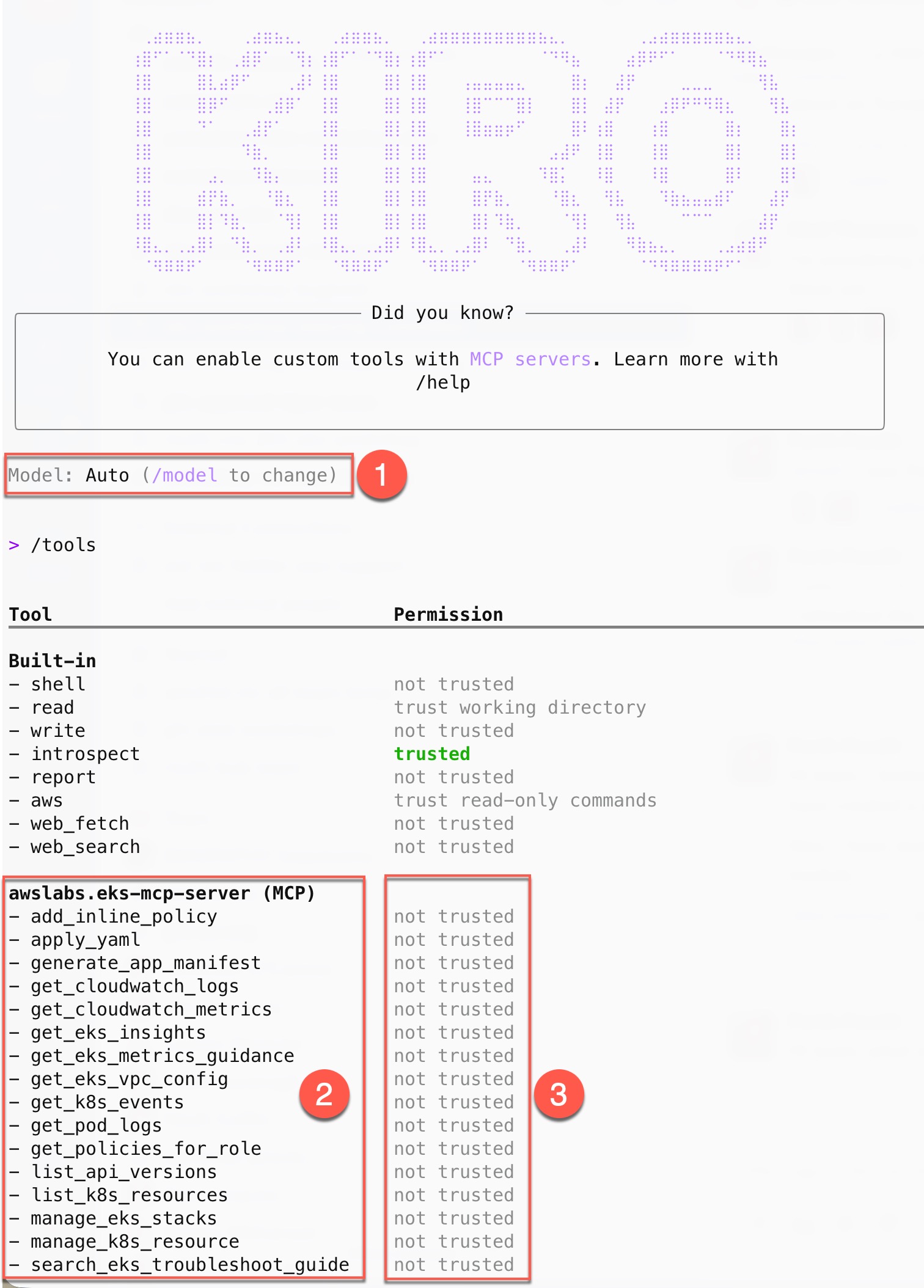
The output shows:
- The default large language model (LLM) selected by Kiro CLI (can be changed using the
/modelcommand) - The list of tools offered by the EKS MCP server
- The default permissions Kiro CLI has for each tool
When a tool is marked as not trusted, Kiro CLI will request your permission before using it. This is a safety measure, particularly for tools that can create, update, or delete resources. Since LLMs can make mistakes, this gives you an opportunity to review potentially disruptive actions before they're executed.
You can follow the same procedure to add other MCP servers from AWS Labs for additional capabilities. For this lab, we'll only need the EKS MCP server we've configured.
In the next section, we'll use Kiro CLI to retrieve information about our EKS cluster.